> For the complete documentation index, see [llms.txt](https://doc.simax.fr/llms.txt). Markdown versions of documentation pages are available by appending `.md` to page URLs; this page is available as [Markdown](https://doc.simax.fr/parametrage/construire/vues/affichage-dune-vue.md).

# Affichage d'une vue

### Première méthode

Dans SIMAX, il est possible d'afficher une vue, c'est à dire de sélectionner des champs d'un ou plusieurs formulaires pour créer un affichage personnalisé.

Exemple:

<figure><img src="https://1324884545-files.gitbook.io/~/files/v0/b/gitbook-x-prod.appspot.com/o/spaces%2FvBJ3Kpe0vg6NlDz0QDIX%2Fuploads%2FGGopBUmEm1NVj92YSsIr%2F13.png?alt=media&amp;token=72af447e-cdc9-42df-b911-ac12d81cda8f" alt=""><figcaption></figcaption></figure>

<p align="right">IMG_P00496</p>

Ici, la vue personnalisée n'affiche que le nom, poste, téléphone et agence des collaborateurs.

Aucune action n'est possible sur cette vue. Ainsi personne ne peut consulter le formulaire de chaque collaborateur. Seules les informations que vous souhaitez laisser apparaître sont visibles pour tous.

### Seconde méthode

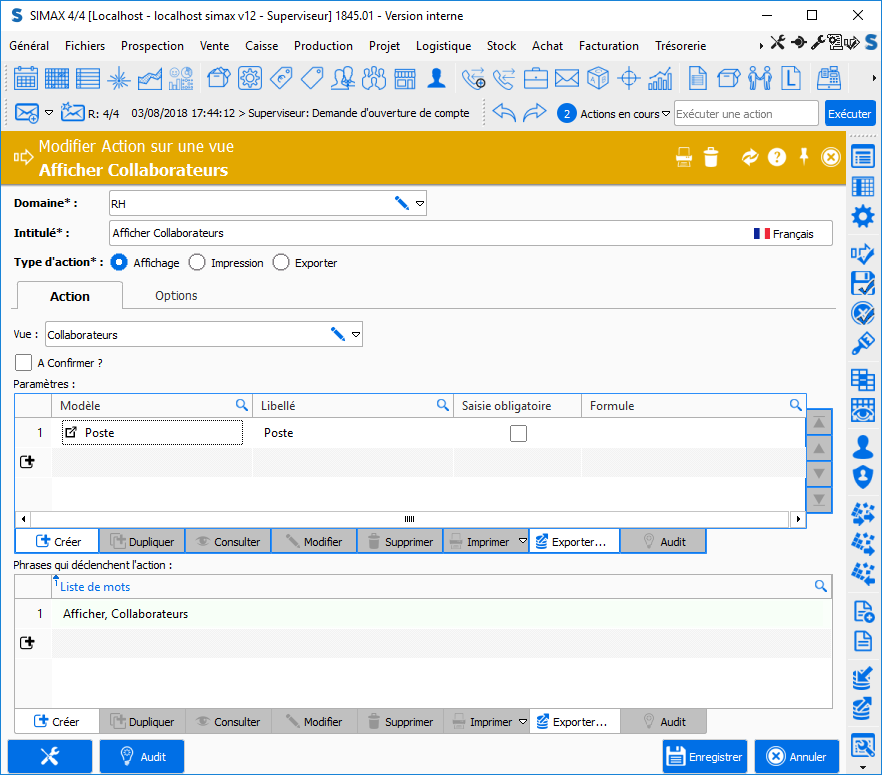
Pour afficher votre vue, tapez dans la barre de Max « afficher ‘intitulé de la vue’ », ici « afficher collaborateurs ».

Exemple:&#x20;

<figure><img src="https://1324884545-files.gitbook.io/~/files/v0/b/gitbook-x-prod.appspot.com/o/spaces%2FvBJ3Kpe0vg6NlDz0QDIX%2Fuploads%2FJGFacoU59CCWBMtnlgf9%2F14.png?alt=media&amp;token=af903ef7-3f43-4898-90d3-6ced55151897" alt=""><figcaption></figcaption></figure>

<p align="right">IMG_P00496</p>

Il est possible d'ajouter des filtres à la vue en cliquant sur le lien « Plus… Moins… ».
<figure><img src="https://1324884545-files.gitbook.io/~/files/v0/b/gitbook-x-prod.appspot.com/o/spaces%2FvBJ3Kpe0vg6NlDz0QDIX%2Fuploads%2F8EX738EGaAK2Fo6ZVDDB%2F15.png?alt=media&amp;token=ea294d27-7911-4fde-b51a-86cf41b76d65" alt=""><figcaption></figcaption></figure>

<p align="right">IMG_P00498</p>

<figure><img src="https://1324884545-files.gitbook.io/~/files/v0/b/gitbook-x-prod.appspot.com/o/spaces%2FvBJ3Kpe0vg6NlDz0QDIX%2Fuploads%2F3KU8tCBqL4GtF21Pklw7%2F16.png?alt=media&amp;token=7e626a6b-f1df-42db-a61e-3ebcec01c4b7" alt=""><figcaption></figcaption></figure>

<p align="right">IMG_P00499</p>

{% hint style="info" %}
Note: Les filtres ne peuvent porter que sur le formulaire lié à la vue et pas sur les colonnes de la vue.
{% endhint %}

Uniquement les calculs peuvent être affichés sous forme de vue. Une fois la vue créée, en cliquant sur le lien « Plus… Moins… », vous pouvez modifier le paramétrage de la vue.


---

# Agent Instructions
This documentation is published with GitBook. GitBook is the documentation platform designed so that both humans and AI agents can read, navigate, and reason over technical content effectively. Learn more at gitbook.com.

## Querying This Documentation
If you need additional information that is not directly available in this page, you can query the documentation by asking a question.

Perform an HTTP GET request on the following URL with the `ask` and `goal` query parameters:

```
GET https://doc.simax.fr/parametrage/construire/vues/affichage-dune-vue.md?ask=<question>&goal=<user_goal>
```

`ask` is the immediate question: it should be specific, self-contained, and written in natural language.
`goal` is what the user is ultimately trying to achieve, the reason they need the answer. Sharing it helps GitBook give you a better, more relevant answer. A goal is most helpful when it describes the outcome the user wants rather than restating the question. For example, with `ask=how do I create an API token`, a goal like `automate deployments from our CI pipeline` lets GitBook tailor the answer to that use case.

The response will contain a direct answer to the question and relevant excerpts and sources from the documentation.

Use this mechanism when the answer is not explicitly present in the current page, you need clarification or additional context, or you want to retrieve related documentation sections.
